




 GUIDE
GUIDERemoving Tape Hiss with CEDAR Audio’s Auto Dehiss: A Complete Guide
Cassette tapes and analogue multi-track recordings bring a beloved warmth and character to sound — but they also come with a familiar, constant companion: tape hiss. This is where CEDAR Auto Dehiss shines.
Introduction
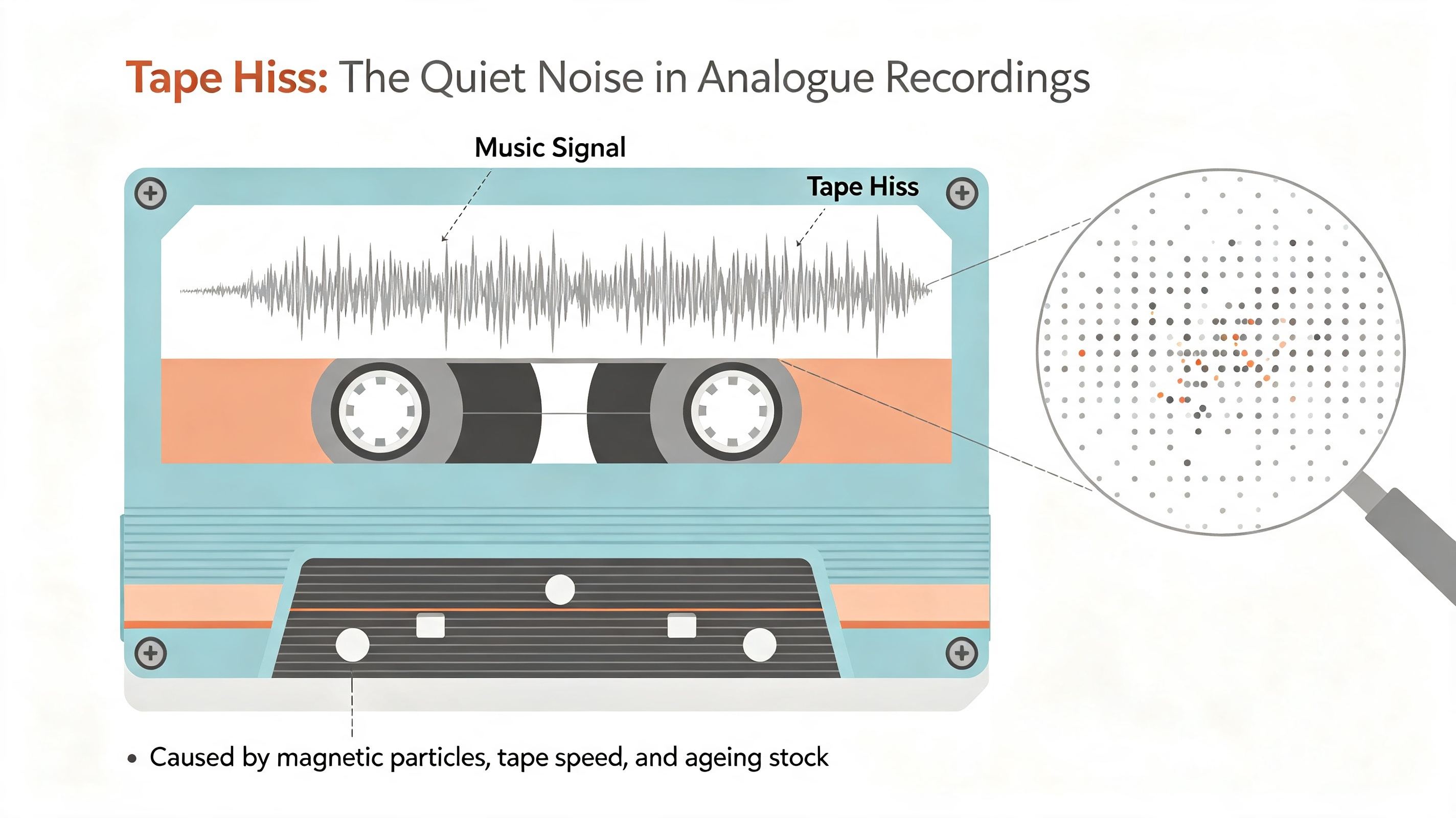
Cassette tapes and analogue multi-track recordings bring a beloved warmth and character to sound — but they also come with a familiar, constant companion: tape hiss. That soft, steady white noise is the result of magnetic particle friction, tape speed limitations, and ageing equipment. Left unchecked, hiss masks detail, muddies quiet passages, and makes recordings feel dated.
This is where CEDAR Auto Dehiss shines. Part of the world-renowned CEDAR Audio restoration ecosystem, Auto Dehiss removes hiss — without you needing to manually draw noise profiles, fiddle with thresholds, or risk dulling the very sound you want to preserve. Or, if needed, the ability for the user to define the threshold.
This article explains how it works, why it excels on tape sources, and exactly how to use it on your cassettes and multi-track tapes.
Understanding Tape Hiss
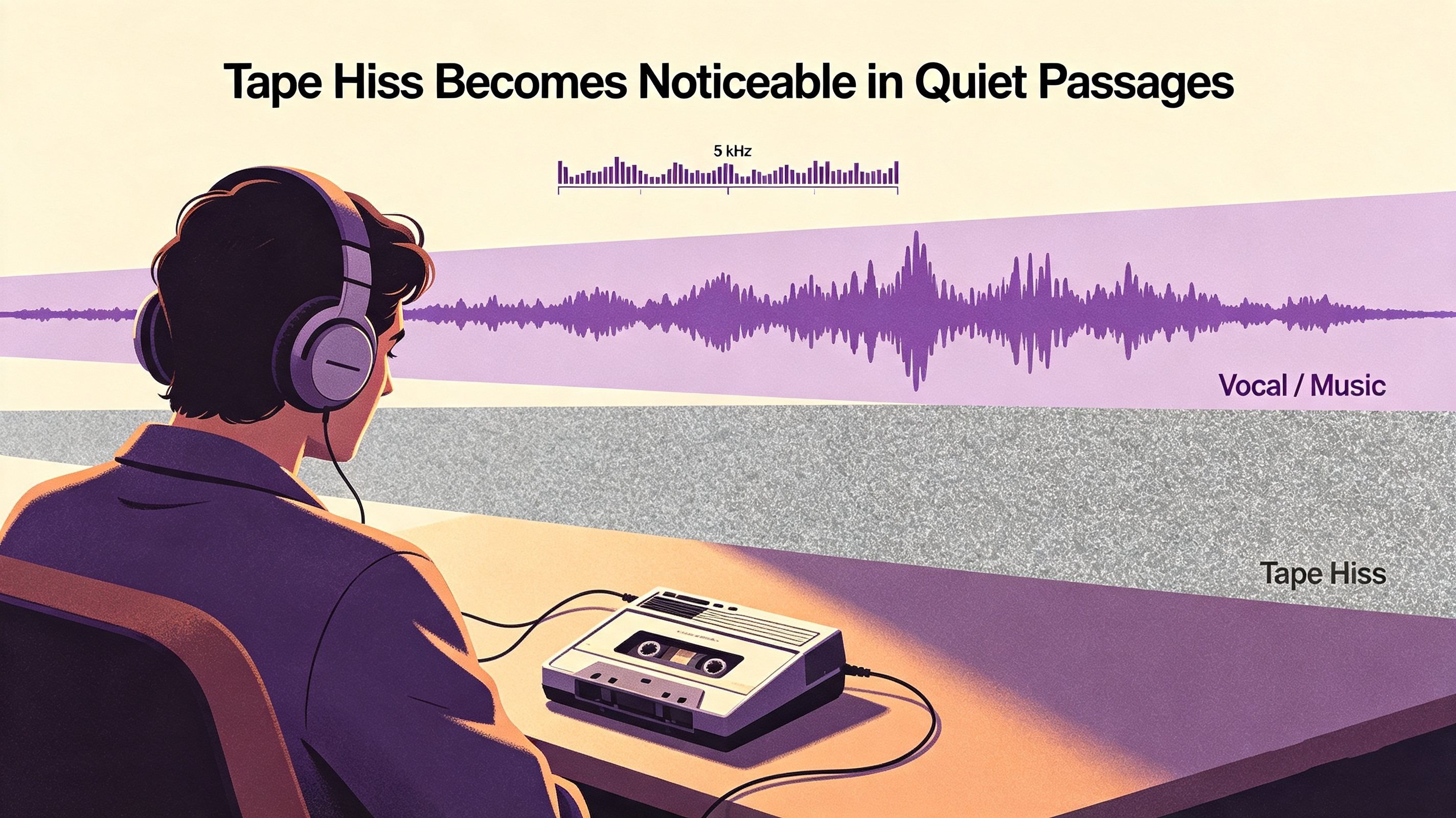
Tape hiss is broadband noise — spanning low to high frequencies — most noticeable in quiet sections or between tracks. It grows worse with thinner tape, slower speeds, and older stock. Unlike a hum or a click, hiss is continuous and evenly spread, making it notoriously difficult to remove with standard EQ or basic noise reduction. Cut the highs to remove hiss, and you lose the vocal clarity, cymbal sparkle, and acoustic detail that makes the recording special.
Traditional methods require you to capture a “noise sample” — a section of pure hiss — then teach the processor what to remove. That works, but it’s time-consuming, and it often leaves you with that hollow, underwater or bird-twitter sound known as “artefacts.”
Why CEDAR Auto Dehiss Is Different
CEDAR Audio has specialised in audio restoration for decades. Auto Dehiss is built on its advanced, intelligent processing — and its biggest advantage is in the algorithm used to remove hiss and it simple interface.
Unlike manual systems, Auto Dehiss does not require you to identify or sample the noise. Instead, it continuously analyses the audio spectrum in real time, distinguishing hiss from actual signal. It adapts as the recording changes — loud, quiet, full band, solo voice — and, with the attenuation control, progressively removes hiss where it lives, without touching the wanted sound.
Key advantages for tape sources:
- No noise sample required — works instantly
- Preserves timbre and clarity — doesn’t turn vocals thin or lifeless
- Reduces hiss evenly across the whole recording
- Minimal artefacts — avoids that “hollow” or “phasey” sound
- Works beautifully on cassette and multi-track alike
Step-by-Step: Removing Hiss from Cassettes
Cassettes are particularly hiss-prone due to their narrow tape and slow speed (typically 4.75 cm/s). Here’s how to get the best results:
1. Transfer First
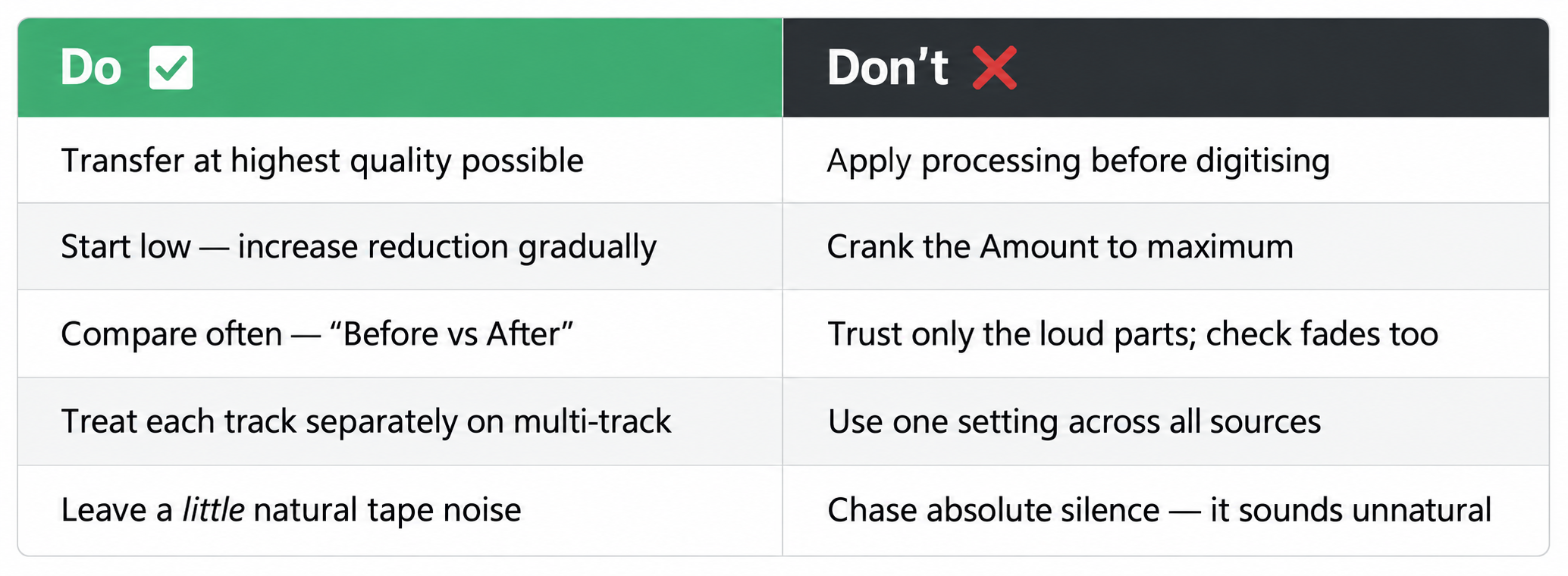
Digitise your cassette to a high-quality file format — WAV or AIFF at 24-bit / 48 kHz is ideal. Keep the transfer clean; do not try to EQ or compress the hiss away during recording. Capture everything — music and hiss — so AutoDehiss has full information to work with.
2. Load Auto Dehiss
Open your audio editor or CEDAR workstation, insert Auto Dehiss as an offline process or real-time plug-in on the audio track.
3. Start in Auto Mode and Low Attenuation Settings
Launch Auto Dehiss and begin with it in auto mode — usually “Standard Hiss Reduction” or “Light reduction.” Have an attenuation setting of -3 to -4 dB and both Bias controls set to 0 as a starting point.
4. Adjust the Attenuation Gently
- Low / Light — gentle cleaning, great for quiet hiss
- Medium — best starting point for most cassettes
- High — for very hissy, old, or degraded tape; use carefully
Pro tip: Listen to quiet sections and fades. If they sound unnaturally quiet or hollow, you’ve gone too far. Back off the Amount until hiss is reduced but the recording still breathes.
5. Check High Frequencies
Solo the high end if possible. Cymbals, sibilance on vocals, and string harmonics should remain intact. If things sound dull, reduce the Amount — AutoDehiss is designed to protect these elements, so over-processing is the usual cause.
6. BIAS and LF BIAS Controls
If you need to adjust Auto Dehiss algorithm to remove more hiss or Low frequency hiss, you can use the BAIS (Biases the operation of Auto Dehiss toward identifying greater or lesser amounts of noise in the signal. The theoretical ideal for any given signal is zero) or the LF BAIS (Allows you to accommodate broadband noise with differing frequency characteristics by accentuating or suppressing the amount of noise identified at Low+Mid frequencies).
7. Manual Threshold - Switching Out of Auto Mode
If needed, you can switch Auto Dehiss out of auto mode and then manually set the noise threshold. The Threshold, tells Auto Dehiss how much noise is present in the signal.
Threshold too low:
The system will not remove all the noise and may generate an artefact from residual noise allowed to pass by the process.
Threshold too high:
The system may treat some low-level signal as if it was noise and attenuate it. This results in a muffled signal.
8. Render / Export
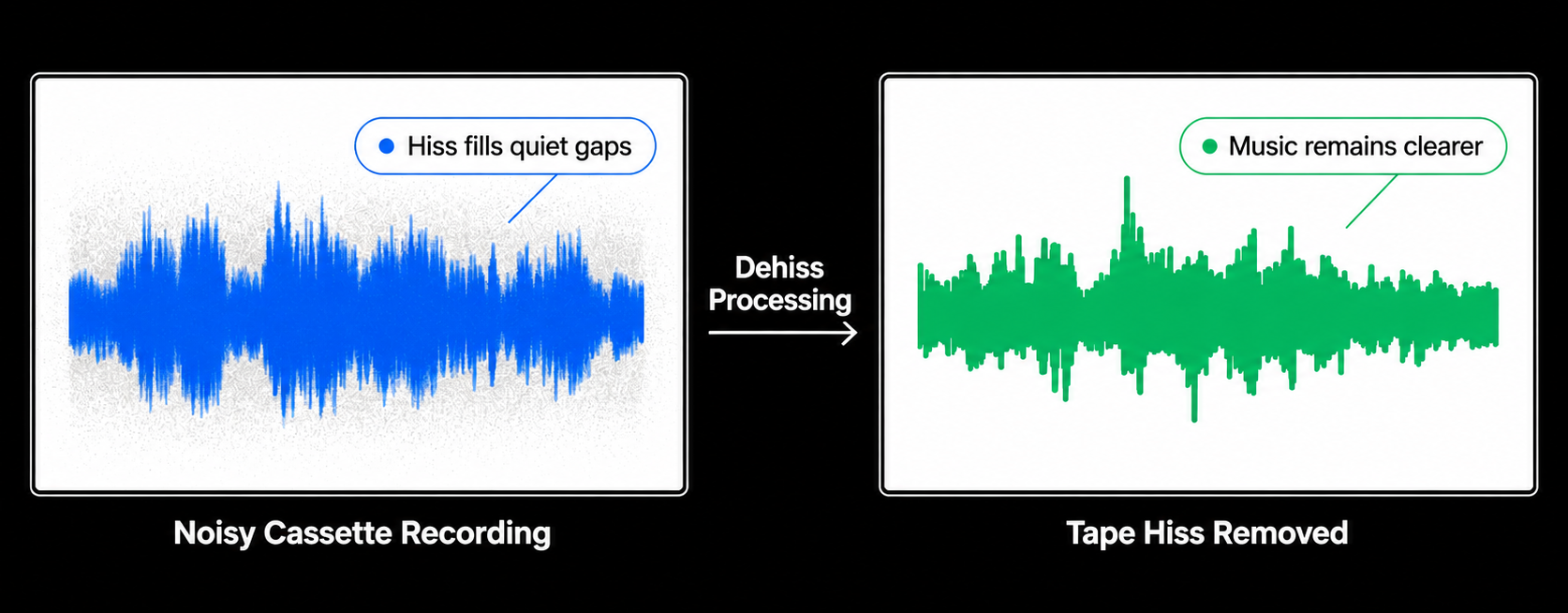
Once it sounds balanced, apply the processing. Compare before and after — you should hear noticeably less background noise, but no change in tone or presence.
Working with Multi-Track Tape Recordings
Using CEDAR Cambridge Respeed is fairly straightforward: establish what the recording should be doing, measure how the tape actually behaves, and construct an appropriate speed correction.
1. Import the Transfer
Start with the best-quality transfer available and avoid beginning with a heavily processed file. Noise reduction, equalisation, compression and other restoration processes can potentially make analysis more difficult or alter the characteristics that you are trying to measure.
The safest approach is generally: Transfer → Respeed → Other restoration
rather than: Transfer → heavy restoration → Respeed
2. Establish the Reference
Respeed needs a basis for determining what constitutes "correct" speed. The reference might come from:
- A known musical pitch.
- A tuning reference.
- A reference tone.
- A known playback speed.
- A matching recording.
- A later-generation source with reliable pitch.
- Spoken material with known timing.
- An accompanying film or video source.
- Historical documentation concerning the recording speed.
3. Analyse the Speed Variation
The next stage is to determine how the pitch or timing varies through the recording. A gradual change over several minutes may indicate speed drift or a changing transport condition. A repeating fluctuation may indicate wow. Faster periodic variation can indicate flutter.
Load the audio that contains the problem into the Process Manager. When you have done this, click on the Respeed icon. This will invoke Respeed and display its user interface.
The Respeed Spectrogram
Respeed's monochrome spectrogram represents audio in three dimensions:
- The horizontal ('X') axis is time.
- The vertical axis ('Y') is frequency.
- The intensity at each point represents amplitude.
You may zoom in the usual fashions to view the spectrogram in more detail. If not already, set Respeed into Advanced mode. This is the default mode, and the one that should be used for the majority of material. The process will automatically create a speed correction template, and a range of drawing tools allows you to modify this to remove any anomalies. This is where the distinction between speed drift and wow/flutter becomes important.
The correction should therefore follow the measured behaviour rather than simply forcing the recording to a visually flat or theoretically perfect curve.
4. Correct the Overall Speed
When speed correction is being undertaken, it is likely that you will want to satisfy one of two overall criteria:
- The corrected track should fit precisely within the original duration of the audio being processed. This is vital if you are correcting a selection of audio within a longer track.
- An overall speed correction be made in addition to any corrections with the track itself.
The Output Speed controls allow you to determine which of these criteria are met for any given restoration. For example, if the known reference indicates that A should be 440 Hz but the transferred recording consistently places the reference at approximately 442 Hz, the first problem is the overall speed error. Once that global offset has been established, the remaining movement can be treated as the time-varying component. This distinction is important because otherwise a restoration can end up correcting the wrong reference.
5. Correct the Changing Speed
Once the overall speed has been established, Respeed can be used to address the variations around that average. Conceptually, the process looks like this:
Original tape speed → global speed error → average corrected speed → plus/minus wow and flutter variation → time-varying correction → stable restored audio
The result should be a recording in which sustained musical pitches remain stable and the timing behaves consistently without introducing obvious processing artifacts.
Guide for Best Results:
Common Pitfalls to Avoid
- Over-processing: If the recording sounds lifeless, distant, or lacks air, you’ve removed too much. Hiss is noise — but it also masks processing artefacts. Removing all hiss can leave the audio sounding unnatural.
- Processing already EQ’d audio: AutoDehiss works best on the raw transfer. If you’ve already rolled off highs, the processor lacks the information it needs to tell hiss apart from signal. Always dehiss first, EQ after.
- Ignoring track differences: On multi-track, a close-mic’d drum track may need zero dehiss; a quiet vocal track may need gentle dehiss. Treat each on its own merits.
Summary
CEDAR AutoDehiss is one of the most powerful tools available for tape restoration — precisely because it does the hard work for you. By analysing and distinguishing hiss from wanted audio automatically, it removes noise without destroying the warmth, clarity, and character of your cassettes and multi-track recordings.
The secret? Go gently. Remove the hiss, but keep the atmosphere. Start with an attenuation of about -3 dB, listen carefully to quiet sections, and preserve that natural “tape breath” — the goal is cleaner sound, not sterile silence. Used well, AutoDehiss will make your analogue recordings sound their best — ready for mixing, archiving, or release — without ever sounding like they’ve been “processed.”